Summary
Provide an LXC Template directly importable into Proxmox
Problem
I was hoping to download an LXC template that is directly importable into Proxmox. Yes, I know there is qcow2 formats, but I want FreedomBox to run in a container inside my Proxmox hypervisor, so the LXC tarball would be a welcome addition to your available downloads.
Solution
Develop and offer as a regular download, an LXC tarball that is tested with Proxmox I would be willing to do the testing if someone would create the LXC template and send it to me or post it on the website as alpha/beta and I could provide feedback. I have never had any luck with utilities to convert any of these images, so that activity will not be possible for me, but I think there’s a lot of home lab users running Proxmox and think it would be a great addition to your offerings.
Screenshots/Layouts
Alternatives
Develop same tarball and also post up to Turnkey Linux, Proxmox’s repo for all containers. All virtual appliances | TurnKey GNU/Linux
Tasks
TBD
1 Like
Produced on “brightu DOT ai”, Enoch provided by HealthRanger:
Summary: Creating an LXC Tarball Container from ISO for Direct Import into Proxmox: A Step-by-Step Guide
To create an LXC tarball container from an ISO file for direct import into Proxmox, follow this detailed procedure. This process assumes you have already set up Proxmox and have basic knowledge of Linux command line.
-
Download and Install necessary tools:
Before starting, ensure you have the following tools installed on your Proxmox host:
debootstrap: Used to create a debian-based system.lxc-image-tools: Used to create LXC containers.lxc: The LXC command-line tool.
You can install these tools using the following commands:
apt update
apt install debootstrap lxc-image-tools lxc
apt install debootstrap lxc-image-tools lxc
Get:1 http://security.debian.org trixie-security InRelease [43.4 kB]
Get:2 http://security.debian.org trixie-security/main amd64 Packages [52.2 kB]
Get:3 http://security.debian.org trixie-security/main Translation-en [35.0 kB]
Hit:4 http://ftp.us.debian.org/debian trixie InRelease
Hit:5 http://ftp.us.debian.org/debian trixie-updates InRelease
Hit:6 http://download.proxmox.com/debian/pve trixie InRelease
Fetched 131 kB in 1s (106 kB/s)
All packages are up to date.
***Error: Unable to locate package lxc-image-tools***
-
Create a directory structure:
Create a directory structure to house your new container. Replace my-container with your desired container name.
mkdir -p /var/lib/lxc/my-container/rootfs
-
Create the base system:
Use debootstrap to create a minimal debian system. Replace stretch with your desired debian version (e.g., buster, bullseye).
debootstrap --arch=amd64 stretch /var/lib/lxc/my-container/rootfs/ http://[deb.debian.org](https://deb.debian.org)/debian
-
Mount the ISO file:
Mount the ISO file containing your desired operating system. Replace /path/to/iso with the actual path to your ISO file, and replace iso-label with the label of your ISO.
mount -o loop /path/to/iso /mnt
-
Copy files from the ISO:
Copy the necessary files from the mounted ISO to your container’s rootfs. This step depends on the ISO’s contents. For a minimal Debian install ISO, use:
cp -a /mnt/boot/* /var/lib/lxc/my-container/rootfs/
-
Unmount the ISO:
Unmount the ISO file.
umount /mnt
-
Create an LXC tarball:
Use lxc-image-tools to create an LXC tarball from your container’s rootfs.
lxc-image-tools create -n my-container -d /var/lib/lxc/my-container/rootfs
-
Import the LXC tarball into Proxmox:
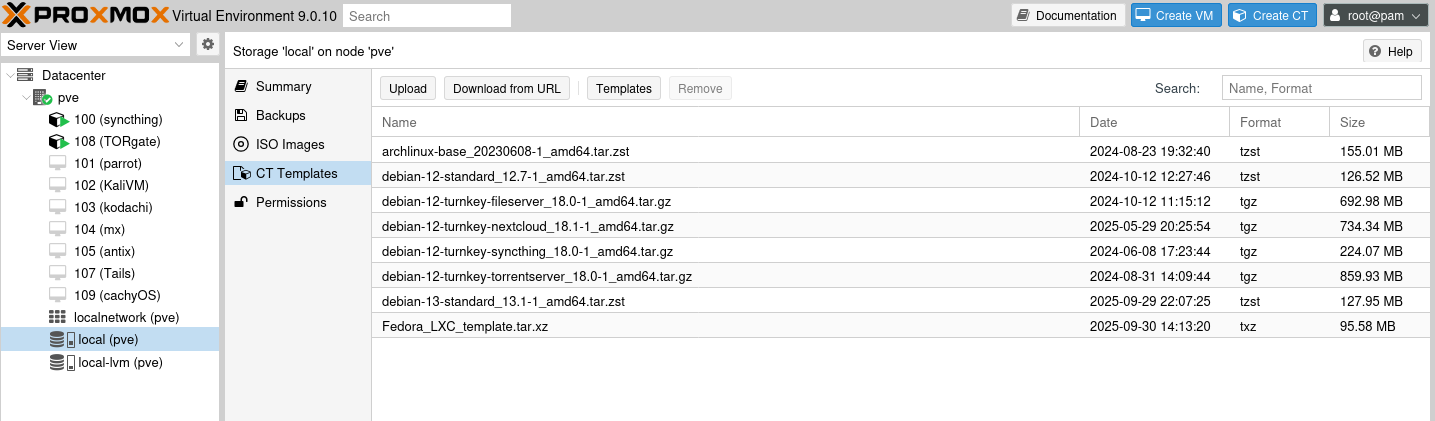
Log in to your Proxmox web interface, navigate to “Storage” > “CT Templates”, and click “Import Template”. Select the .[tar.gz](https://tar.gz) file created in the previous step and click “Import”.
-
Create a new LXC container from the template:
In the Proxmox web interface, navigate to “Create CT” and select your newly imported template. Configure your container settings and click “Start”.
-
Verify the container:
Once the container is started, verify that it’s running by checking the container list in the Proxmox web interface or using the lxc-ls command on your Proxmox host.
Reference the above included console output, lxc-image-tools is not in the repository, so the AI generated procedure seems either incorrect or dated, making this procedure insufficient, but I’ll leave it here because maybe it will help developers utilize the parts in that procedure that are good.
Here’s a recipe to build an (untested) LXC image with FreedomBox:
- Install distrobuilder package:
$ sudo apt install distrobuilder distrobuilder-images
- Make a copy of the Debian template:
$ cp /usr/share/distrobuilder-images/debian.yaml freedombox.yaml
- Open freedombox.yaml in a text editor, and search for “packages”. Add “freedombox” to the first section with a list of packages:
packages:
  manager: apt
  update: true
  cleanup: true
  sets:
  - packages:
    - dialog
    - freedombox
    - init
    - iproute2
    - iputils-ping
    - isc-dhcp-client
    - locales
    - netbase
    - net-tools
    - openssh-client
    - procps
    - sudo
    - vim
    action: install
- Build the image:
$ sudo distrobuilder build-lxc freedombox.yaml ./freedombox-trixie-image/ -o image.release=trixie
The output will be stored in this folder:
$ ls freedombox-trixie-image/
meta.tar.xz  rootfs.tar.xz
I did not test the resulting image yet. But I can share the image with you if you have trouble with building it.
1 Like
I saw distrobuilder and did not understand the syntax, so it sounds like you’re on the right track. I am happy to test it if you generate the tarball and post it somewhere I can download it, test on Proxmox, and report results here when done. Of course it will help if you rename tarball to a name that contains “FreedomBox” in it.
Thanks again.
This is working fine under PVE 9.1.5.